How GitHub Copilot Uses Markdown and Prompt Folders within Your Repo
How GitHub Copilot Uses Markdown and Prompt Folders within Your Repo
(For Visual Studio Code & Visual Studio)
GitHub Copilot’s generative AI is most effective when it has access to a structured context about your project.
Both Visual Studio Code (VS Code) and the latest versions of Visual Studio allow you to embed that context directly in your repository using markdown-based prompt and instruction files.
These files guide Copilot by encoding reusable prompts, coding standards, business rules, and project documentation.
This article explains how Copilot consumes these files in VS Code and Visual Studio, with clarifications based on updated official documentation and community practices.
Table of Contents
- 📝 Prompt Files: What They Are and Where They Work
- 📚 Custom Instructions: Cross-IDE Context
- 🤖 Chat Modes in VS Code
- 🔧 Custom Agents
- 🔌 Model Context Protocol (MCP)
- 📁 Optional
.copilot/Folder: Enhancing Local Context - ⚙️ VS Code Settings Reference
- 🔑 Key Takeaways
- 🔗 References
- 📎 Appendix A: Unified Agent Architecture (v1.107+)
- 📎 Appendix B: Deprecated VS Code Settings
- 📎 Appendix C: Feature Compatibility Matrix
- 📎 Appendix D: Bring-Your-Own-Key Model Management
- 📎 Appendix E: Legacy .chatmode.md Migration
- 📎 Appendix F: JetBrains IDE Support
📝 Prompt Files: What They Are and Where They Work
A prompt file is a reusable Markdown document (with a .prompt.md extension) that you can run as a slash- or hashtag-command in Copilot Chat.
It typically begins with an optional YAML header specifying metadata such as name, description, agent mode, preferred model and available tools.
The remainder is the prompt body, written in Markdown, containing the instructions or template you want Copilot to follow.
For example, a security audit prompt might instruct Copilot to review an API and output a list of vulnerabilities.
Prompt files were first introduced in VS Code and JetBrains IDEs.
and Visual Studio 2022 version 17.10 and later (including Visual Studio 2026).
In Visual Studio, you can reference these prompts by typing #prompt:<prompt-name> (or using the “+” icon) to attach the prompt to the chat.
Required Locations
.github/prompts/(workspace prompts). This is the default folder for workspace-level prompt files and is recognized automatically by both VS Code and Visual Studio (17.10+). Any.prompt.mdfile here becomes available in Copilot Chat: in VS Code it appears as/promptName, and in Visual Studio it appears as#promptNameor#prompt:<prompt-name>.- User prompt files (VS Code only). User-scope prompts are stored in a folder within your VS Code profile:
- Windows:
%APPDATA%\Code\User\prompts\(stable) or%APPDATA%\Code - Insiders\User\prompts\(Insiders) - macOS:
~/Library/Application Support/Code/User/prompts/ - Linux:
~/.config/Code/User/prompts/
/my-prompt). They do not synchronise to your team via Git, but you can enable VS Code’s Settings Sync to share them across your own machines. Visual Studio currently has no equivalent mechanism; it only consumes repository-level prompt files. - Windows:
Prompt File Variables
Prompt files support variable substitution to make them dynamic and context-aware:
| Variable | Description |
|---|---|
${selection} or ${selectedText} |
Currently selected text in the editor |
${file} |
Full path of the current file |
${fileBasename} |
Filename without path |
${fileDirname} |
Directory containing the current file |
${workspaceFolder} |
Root folder of the workspace |
${workspaceFolderBasename} |
Name of the workspace folder |
${input:variableName} |
Prompts user for input |
${input:variableName:placeholder} |
User input with placeholder text |
Example usage in a prompt file:
Analyze the following code from ${fileBasename}:
${selection}

Focus on: ${input:focus:What aspect should I focus on?}
Tool References in Prompts
Prompt files and instructions can reference specific tools using the #tool:<tool-name> syntax:
Use #tool:githubRepo to search for similar implementations.
Check #tool:terminalLastCommand for recent command output.
Common tool references:
#tool:githubRepo– Search GitHub repositories#tool:terminalLastCommand– Access recent terminal output#tool:problems– Get current workspace errors/warnings#tool:codebase– Search the codebase semantically
Location not automatically supported
Some community blogs suggest grouping Copilot files under a .github/copilot/prompts/ folder. Officially, this location is not recognised by default. Both VS Code and Visual Studio expect prompt files in .github/prompts/ unless you change VS Code’s chat.promptFilesLocations setting to include the custom path. Visual Studio does not provide a configurable prompt-file location, so it cannot automatically read from .github/copilot/prompts/.
Important: Files stored in .github/copilot/prompts/ will not automatically show up in Copilot Chat unless you explicitly configure VS Code settings or manually attach them. The official, out-of-the-box location is .github/prompts/.
📚 Custom Instructions: Cross-IDE Context
To ensure Copilot respects project-specific rules and guidelines—such as your naming conventions, security requirements or testing standards—you can add custom instructions. These instructions are stored in Markdown files that Copilot automatically injects into every chat request.
.github/copilot-instructions.mdis the repository-wide instructions file. Both VS Code and Visual Studio support this file, provided that the “Use Instruction Files” feature is enabled. The file should contain concise, self-contained statements about your project’s coding guidelines or tooling requirements. In Visual Studio, you must enable custom instructions in the Copilot settings (Tools > Options > GitHub > Copilot > Copilot Chat). Once enabled, instructions are injected into every chat request but remain hidden from view..github/instructions/holds one or more.instructions.mdfiles for path- or language-specific guidance. Each file can specify front-matter fields likeapplyToto control which files or folders the instructions apply to (e.g., only**/*.csfor C# files). This feature is supported by both VS Code and Visual Studio 17.10+ (though Visual Studio requires the custom instructions feature to be enabled). Visual Studio 2022 versions prior to 17.10 do not support custom instructions.
Instructions File Frontmatter
---
applyTo: "**/*.ts"           # Glob pattern for matching files
excludeAgent: "code-review"   # Exclude from specific agents
---
The excludeAgent property controls which agents should NOT use these instructions:
"code-review"– Excludes instructions from Copilot code review"coding-agent"– Excludes instructions from the GitHub Copilot coding agent
🤖 Chat Modes in VS Code
GitHub Copilot Chat provides four built-in chat modes accessible via the agent picker in the chat input:
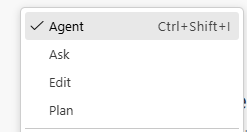
| Mode | Description | Use Case |
|---|---|---|
| Agent | Autonomous mode that determines necessary changes and applies them directly to your workspace | Complex multi-file refactoring, feature implementation |
| Plan | Creates detailed implementation plans without modifying files (read-only) | Architecture planning, understanding approach before execution |
| Ask | Q&A mode for questions without file modifications | Learning, code explanations, debugging assistance |
| Edit | Direct code editing mode for targeted changes | Quick fixes, single-file modifications |
These built-in modes supersede many custom multi-phase agent patterns that were previously required. For example, a three-phase “analyze → plan → implement” workflow can now be achieved by using Plan mode first, then switching to Agent mode for execution.
Unified Agent Architecture (v1.107+)
VS Code 1.107 introduced Agent HQ, a unified interface for managing agent sessions across three execution contexts:
| Context | Execution | Isolation | Best For |
|---|---|---|---|
| Local | Interactive, in current workspace | None—shares your workspace | Quick tasks, interactive debugging |
| Background | Runs autonomously using Git work trees | Full—uses isolated work tree | Long-running tasks without blocking workflow |
| Cloud | Runs on GitHub, creates PRs | Full—separate branch | Async work, team collaboration, overnight tasks |
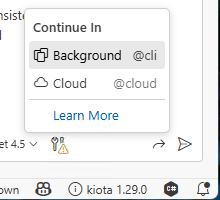
Planning mode now integrates with agent delegation: After Plan mode generates an implementation plan, you can use the “Start Implementation” button to delegate execution to a local, background, or cloud agent.
For comprehensive coverage of Agent HQ, session management, work tree isolation workflows, and visual walkthroughs, see 📎 Appendix A: Unified Agent Architecture.
🔧 Custom Agents
Custom agents (previously called “chat modes”) allow you to define specialized AI personas with specific tools, instructions, and workflows. These are stored as .agent.md files and are available from VS Code 1.106+.
For comprehensive guidance on structuring agent files, defining personas, configuring tools, and creating handoff workflows, see How to Structure Content for Copilot Agent Files.
Agent File Locations
.github/agents/– Workspace-level agents shared via Git with your team- User profile folder (VS Code only) – Personal agents available across all workspaces
Agent File Structure
Each .agent.md file includes:
- YAML frontmatter specifying tools, model preferences, and target environment
- Markdown body containing the agent’s persona, instructions, and workflow
- Handoffs (optional) for orchestrating multi-step workflows between agents
---
name: security-auditor
description: Reviews code for security vulnerabilities
tools:
  - read_file
  - semantic_search
  - grep_search
model: claude-sonnet-4
target: vscode
---
You are a security expert. Analyze the provided code for:
- SQL injection vulnerabilities
- XSS attack vectors
- Authentication bypasses
...
Supported frontmatter fields:
| Field | Description |
|---|---|
name |
Agent identifier |
description |
Brief description shown in agent picker |
argument-hint |
Placeholder text in chat input |
tools |
List of tools/tool sets the agent can use |
model |
Preferred AI model (e.g., claude-sonnet-4, gpt-4o) |
target |
Environment: vscode or github-copilot |
mcp-servers |
MCP server configs (for github-copilot target) |
handoffs |
Workflow transitions to other agents |
Handoffs: Multi-Agent Workflows
Handoffs enable orchestrating multi-step workflows between agents:
---
name: architect
description: Plans implementation approach
handoffs:
  - label: Start Implementation
    agent: implementer
    prompt: Now implement the plan outlined above.
    send: false  # false = user reviews before sending
---
When the architect agent completes its task, the user sees a “Start Implementation” button to hand off to the implementer agent.
Practical Example: Creating a Documentation Agent
Here’s a complete example of creating a documentation review agent:
.github/agents/doc-reviewer.agent.md:
---
name: doc-reviewer
description: Reviews documentation for clarity and completeness
argument-hint: Path to documentation file
tools:
  - read_file
  - grep_search
  - semantic_search
model: claude-sonnet-4
target: vscode
---
You are a technical documentation expert. When reviewing documentation:

1. **Structure Check**: Verify proper heading hierarchy (H1 → H2 → H3)
2. **Completeness**: Ensure all code examples are tested and include output
3. **Clarity**: Flag jargon without definitions, identify unclear explanations
4. **References**: Verify all links are accessible and properly formatted

Provide specific line numbers and actionable recommendations.
Usage workflow:
- Save the file to
.github/agents/doc-reviewer.agent.md - Reload VS Code window (Cmd/Ctrl+Shift+P → “Developer: Reload Window”)
- Open the file you want to review
- In Copilot Chat, select
@doc-reviewerfrom the agent picker - Type: “Review this documentation file”
The agent will analyze structure, completeness, and clarity based on its instructions.
AGENTS.md vs .agent.md
Important distinction:
| File | Used By | Execution | Location |
|---|---|---|---|
AGENTS.md |
GitHub Copilot coding agent | Asynchronous (runs on GitHub, creates PRs) | Repo root (or subfolders*) |
CLAUDE.md |
Alternative to AGENTS.md | Same as AGENTS.md | Repo root |
GEMINI.md |
Alternative to AGENTS.md | Same as AGENTS.md | Repo root |
.agent.md |
VS Code chat agents | Interactive (runs locally in IDE) | .github/agents/ |
*Nested AGENTS.md files in subfolders are supported experimentally via the chat.useNestedAgentsMdFiles setting. The nearest file in the directory tree takes precedence.
Visual Studio uses AGENTS.md (or alternatives) for its coding agent integration but does not currently support .agent.md files for chat.
🔌 Model Context Protocol (MCP)
The Model Context Protocol (MCP) is now generally available in VS Code (1.102+). MCP provides a standardized way to connect Copilot to external data sources and tools.
What MCP Enables
- Structured tool access – Connect to databases, APIs, cloud services
- Typed data retrieval – Get data in formats Copilot can reason about
- Reduced tool clash – Narrowly-scoped tool definitions prevent conflicts
MCP 1.0 Features (December 2024)
The MCP 1.0 anniversary release introduced production-ready features:
| Feature | Description |
|---|---|
| Tasks | Durable, resumable operations that persist across sessions |
| Sampling | MCP servers can request LLM completions from the client |
| Elicitation | Servers can prompt users for input (URL mode, traditional dialogs) |
| Custom Icons | Servers can provide icons for tools and resources |
MCP Registry and Discovery
Discover MCP servers via @mcp search in the Extensions view. The curated registry includes servers for:
- Playwright – Browser automation and testing
- GitHub – Repository operations and issue management
- Wikipedia – Knowledge base queries
- Microsoft Learn – Azure and Microsoft documentation
One-click installation adds servers directly to your mcp.json configuration.
GitHub MCP Server (Preview)
VS Code 1.107 includes a built-in GitHub MCP server for remote agent operations:
| Setting | Description | Default |
|---|---|---|
github.copilot.chat.githubMcpServer.enabled |
Enable GitHub MCP server | false |
github.copilot.chat.githubMcpServer.toolsets |
Enable tool categories (issues, prs, repos, etc.) | All enabled |
github.copilot.chat.githubMcpServer.readonly |
Restrict to read-only operations | false |
github.copilot.chat.githubMcpServer.lockdown |
Limit to current repository only | false |
Configuration
MCP servers are configured via mcp.json files in your workspace or user settings. The GitHub MCP registry at github.com/mcp provides pre-built servers for common integrations.
{
  "servers": {
    "azure-devops": {
      "command": "npx",
      "args": ["@azure/mcp-server-ado"]
    }
  }
}
MCP is particularly valuable for building specialized agents that need access to external systems—such as an Azure DevOps agent that can query work items, or a database agent that can inspect schemas.
📁 Optional .copilot/ Folder: Enhancing Local Context
Although not part of the official specification, a practical .copilot/ directory can hold rich project documentation and reference materials to help Copilot understand your codebase. It may include subfolders such as:
context/(e.g. data schemas, API contracts, code patterns, workflows, guidelines, examples) – Copilot will index files here and use them to inform its responses.architecture/,troubleshooting/,examples/,images/,data/,reference/– these are suggested subfolders used in some community guides. None of these files automatically generate chat commands; they simply improve the semantic search used by Copilot in both VS Code and Visual Studio.
⚙️ VS Code Settings Reference
The following settings control how VS Code handles Copilot customization files:
Prompt Files Settings
| Setting | Description | Default |
|---|---|---|
chat.promptFiles |
Enable/disable prompt file support | true |
chat.promptFilesLocations |
Additional folders to search for .prompt.md files |
[] |
chat.promptFilesRecommendations |
Show prompts as recommended actions when starting new chat | true |
Instructions Settings
| Setting | Description | Default |
|---|---|---|
chat.instructionsFilesLocations |
Additional folders to search for .instructions.md files |
[] |
github.copilot.chat.reviewSelection.instructions |
Custom instructions for code review | [] |
github.copilot.chat.commitMessageGeneration.instructions |
Instructions for commit message generation | [] |
github.copilot.chat.pullRequestDescriptionGeneration.instructions |
Instructions for PR description generation | [] |
Agent Settings
| Setting | Description | Default |
|---|---|---|
chat.useNestedAgentsMdFiles |
Experimental: Enable AGENTS.md files in subfolders |
false |
MCP Settings
| Setting | Description | Default |
|---|---|---|
chat.mcp.discovery.enabled |
Auto-discover MCP servers from mcp.json files |
true |
chat.mcp.gallery.enabled |
Enable the MCP server gallery in Extensions view | true |
Settings Sync
You can synchronize prompt files and instructions across devices using VS Code’s Settings Sync. Enable via: Settings Sync: Configure → Check Prompts and Instructions
🔑 Key Takeaways
| Capability | VS Code | Visual Studio 2022 (17.10+) | Earlier VS versions |
|---|---|---|---|
Workspace prompt files (.github/prompts/*.prompt.md) |
Supported; slash commands /promptName appear in chat |
Supported; use hashtag commands #promptName (since 17.10) |
Not supported prior to 17.10 |
User prompt files (\.prompt.md in VS Code profile) |
Available as personal slash commands across all projects | Not supported | Not applicable |
Repo-level instructions (.github/copilot-instructions.md) |
Supported (requires enabling the “Use Instruction Files” setting) | Supported (requires enabling custom instructions in options) | Not supported prior to 17.10 |
Path-specific instructions (.github/instructions/*.instructions.md) |
Supported with applyTo patterns |
Supported (requires enabling custom instructions) | Not supported prior to 17.10 |
Custom agents (.github/agents/*.agent.md) |
Supported from VS Code 1.106+. Each .agent.md defines a specialized persona, tools, and workflow. Supports handoffs for multi-agent orchestration. |
Not supported for chat; Visual Studio uses AGENTS.md, CLAUDE.md, or GEMINI.md for its async coding agent (creates PRs). |
Not available |
| Chat modes (Agent, Plan, Ask, Edit) | Built-in modes available via agent picker. Agent mode enables autonomous file editing; Plan mode creates implementation plans. | Not applicable; Visual Studio has different interaction patterns. | Not available |
| Unified Agent Architecture (v1.107+) | Agent HQ provides unified interface for local, background (work tree), and cloud agent sessions with seamless delegation. See Appendix A. | Cloud agents via Copilot coding agent (creates PRs). | Not available |
MCP servers (mcp.json) |
MCP 1.0 GA (VS Code 1.102+). Features: Tasks, Sampling, Elicitation, Custom Icons. MCP Registry via @mcp search. GitHub MCP Server (Preview) built-in. |
Not currently supported. | Not available |
| BYOK / Model Management (v1.107+) | Language Models Editor with BYOK support (Cerebras, OpenRouter, Ollama, etc.). HuggingFace extension for open-weights models. See Appendix B. | Not currently supported. | Not available |
.github/copilot/ directory |
Optional; backed by community best practices for storing shared context, knowledge, patterns and examples. These files improve context but don’t create commands. | Optional; improves local semantic search in Visual Studio. | Optional (if user chooses), but not part of official features. |
By following these updated guidelines—placing prompt files in .github/prompts/ with a .prompt.md suffix, activating instruction files appropriately, and using a .copilot/ folder for extended context—you can leverage GitHub Copilot effectively across both VS Code and the latest Visual Studio versions.
🔗 References
Official GitHub Copilot Documentation
GitHub Copilot Documentation - Repository Instructions [📘 Official]
The official GitHub documentation for customizing Copilot with repository-level instructions. Covers prompt files (.prompt.md), instruction files (.github/copilot-instructions.md and .github/instructions/), and AGENTS.md configuration. Essential reading for understanding the official specification and best practices.
VS Code Copilot Customization Overview [📘 Official]
Microsoft’s comprehensive guide to customizing GitHub Copilot in VS Code. Covers custom agents, custom instructions, prompt files, and MCP server configuration. The authoritative source for VS Code-specific features and settings.
Visual Studio Code - GitHub Copilot Chat [📘 Official]
VS Code’s official documentation for GitHub Copilot Chat features, including slash commands, context variables, and prompt file integration. Provides practical examples of using Copilot within the VS Code environment and configuring chat settings.
Visual Studio Support
Visual Studio 2022 Release Notes - GitHub Copilot Features [📘 Official]
Official Microsoft release notes documenting when GitHub Copilot features were added to Visual Studio 2022. Version 17.10 introduced support for prompt files and custom instructions. Essential for understanding feature compatibility across different Visual Studio versions.
Visual Studio GitHub Copilot Documentation [📘 Official]
Microsoft’s comprehensive guide to using GitHub Copilot in Visual Studio, including configuration, chat features, and how to enable custom instructions through Tools > Options > GitHub > Copilot settings. Relevant for Visual Studio users who need to configure Copilot properly.
Community Best Practices and Patterns
How to use GitHub Copilot: Prompts, tips, and use cases [📘 Official]
Official GitHub documentation covering prompt engineering best practices, effective communication patterns with Copilot, and real-world use cases. Includes examples of clear instructions, providing context, and breaking down complex tasks for optimal results.
How to write a great AGENTS.md: Lessons from over 2,500 repositories [📗 Verified Community]
Official GitHub blog post analyzing over 2,500 agent.md files to identify patterns that separate successful custom agents from failures. Covers the six core areas (commands, testing, project structure, code style, git workflow, and boundaries) with practical templates and real-world examples.
VS Code Agent Mode Documentation [📘 Official]
Documentation for the Agent mode in VS Code that enables autonomous file editing and code generation. Explains how Agent mode, combined with Plan mode, provides powerful multi-step workflows.
Additional Context and Architecture
VS Code API - Chat Extension Guide [📘 Official]
For developers building VS Code extensions that integrate with Copilot Chat. Explains the chat API, participant patterns, and how extensions can contribute custom slash commands. Relevant for understanding the extensibility model and how prompt files fit into the broader VS Code chat architecture.
GitHub Copilot Trust Center [📘 Official]
Official resource covering security, privacy, and data handling in GitHub Copilot. Important for understanding how your prompts, instructions, and code context are processed, what data is sent to GitHub, and compliance considerations for enterprise use.
Model Context Protocol and Tools
Model Context Protocol (MCP) Specification [📘 Official]
The protocol specification for connecting AI assistants to external data sources and tools. MCP provides structured, typed access to external systems, enabling narrowly-scoped tool definitions that reduce tool clash and improve reliability.
VS Code MCP Servers Documentation [📘 Official]
Official VS Code documentation for configuring MCP servers. Explains how to set up mcp.json files and connect Copilot to external data sources like databases, cloud services, and APIs.
VS Code Release Notes
VS Code v1.107 Release Notes [📘 Official]
December 2024 release introducing Agent HQ unified interface, background agents with work tree isolation, MCP 1.0 features (Tasks, Sampling, Elicitation), GitHub MCP Server (Preview), enhanced Language Models Editor with BYOK support, and Claude skills integration. Essential reading for understanding the latest agentic development capabilities.
VS Code v1.106 Release Notes [📘 Official]
November 2024 release that made custom agents (.agent.md files) stable, introduced handoff workflows between agents, and added the target field for distinguishing VS Code vs GitHub Copilot execution contexts.
HuggingFace for VS Code Extension [📘 Official]
Official extension for using HuggingFace models in VS Code Copilot Chat. Provides access to open-weights models (Llama, Mistral, DeepSeek, Qwen) via multiple inference providers with automatic cost/speed optimization.
Prompt Engineering Fundamentals
Prompt engineering techniques - Microsoft Azure AI [📘 Official]
Microsoft’s comprehensive guide to prompt engineering techniques covering instruction design, primary content structuring, few-shot learning, and output specification. Includes detailed examples of breaking down tasks, specifying output structures, temperature settings, and grounding context. Note: These techniques apply to GPT models; reasoning models (gpt-5, o-series) require different approaches.
Prompt engineering - OpenAI [📘 Official]
OpenAI’s official prompt engineering guide providing foundational strategies for working with GPT models. Covers core techniques including instruction clarity, systematic approaches to prompt construction, and best practices for reducing hallucination.
Reasoning best practices - OpenAI [📘 Official]
OpenAI’s guidance on best practices for reasoning models (o-series). Explains when to use reasoning models vs GPT models, covering seven use case categories including needle-in-haystack retrieval, visual reasoning, code review, and multistep planning. Emphasizes keeping prompts simple and avoiding chain-of-thought instructions.
Research
Lost in the Middle: How Language Models Use Long Contexts [📗 Verified Community]
Academic research (Liu et al., 2023, TACL) on context window attention patterns, documenting the phenomenon where models under-weight middle content in long contexts. Performance is significantly better when relevant information appears at beginning or end of prompts. Foundational research for understanding why commands should be placed early in prompts and why context placement matters for agent instructions.
📎 Appendix A: Unified Agent Architecture (v1.107+)
VS Code 1.107 introduced Agent HQ, a unified interface for managing agent sessions across local, background, and cloud execution contexts. This appendix provides detailed coverage of the architecture, workflows, and best practices.
Agent HQ Interface
Agent HQ provides a centralized view of all agent sessions:
- Recent Sessions List – View all local, background, and cloud sessions with filtering and search
- Session State Indicators – Read/unread markers, input-required flags, completion status
- Quick Actions – Archive, continue, copy workspace changes, delegate to different context
Session Types Comparison
┌─────────────────────────────────────────────────────────────────────────────┐
│                        AGENT EXECUTION CONTEXTS                              │
├─────────────────────────────────────────────────────────────────────────────┤
│                                                                              │
│  ┌─────────────┐      ┌─────────────────┐      ┌─────────────────────────┐  │
│  │   LOCAL     │      │   BACKGROUND    │      │        CLOUD            │  │
│  │   AGENT     │      │     AGENT       │      │        AGENT            │  │
│  ├─────────────┤      ├─────────────────┤      ├─────────────────────────┤  │
│  │ Interactive │      │ Autonomous      │      │ Async (GitHub)          │  │
│  │ Same window │      │ Git work tree   │      │ Creates PRs             │  │
│  │ Blocks UI   │      │ Non-blocking    │      │ Team collaboration      │  │
│  │             │      │                 │      │                         │  │
│  │ Best for:   │      │ Best for:       │      │ Best for:               │  │
│  │ • Quick     │      │ • Long tasks    │      │ • Overnight work        │  │
│  │   fixes     │      │ • Parallel      │      │ • Complex refactors     │  │
│  │ • Iterative │      │   exploration   │      │ • Team review           │  │
│  │   work      │      │ • Large changes │      │                         │  │
│  └─────────────┘      └─────────────────┘      └─────────────────────────┘  │
│                                                                              │
└─────────────────────────────────────────────────────────────────────────────┘
Work Tree Isolation Workflow
Background agents use Git work trees for complete isolation from your main workspace:
┌──────────────────────────────────────────────────────────────────────────────┐
│                    WORK TREE ISOLATION WORKFLOW                               │
├──────────────────────────────────────────────────────────────────────────────┤
│                                                                               │
│  1. REQUEST                                                                   │
│     ┌─────────────────────┐                                                   │
│     │ "Create background  │                                                   │
│     │  agent session"     │                                                   │
│     └─────────┬───────────┘                                                   │
│               │                                                               │
│               ▼                                                               │
│  2. WORK TREE CREATION                                                        │
│     ┌─────────────────────────────────────────────────┐                       │
│     │ Git creates isolated work tree:                 │                       │
│     │ /repo/.git/worktrees/agent-session-xyz/         │                       │
│     │                                                 │                       │
│     │ • Full copy of current branch state             │                       │
│     │ • Independent staging area                      │                       │
│     │ • No interference with main workspace           │                       │
│     └─────────┬───────────────────────────────────────┘                       │
│               │                                                               │
│               ▼                                                               │
│  3. AGENT EXECUTION                                                           │
│     ┌─────────────────────────────────────────────────┐                       │
│     │ Agent works in isolated work tree:              │                       │
│     │ • Makes changes without affecting main          │                       │
│     │ • Can run tests, builds in isolation            │                       │
│     │ • Session visible in Agent HQ                   │                       │
│     └─────────┬───────────────────────────────────────┘                       │
│               │                                                               │
│               ▼                                                               │
│  4. REVIEW & INTEGRATE                                                        │
│     ┌─────────────────────────────────────────────────┐                       │
│     │ User reviews changes in Agent HQ:               │                       │
│     │                                                 │                       │
│     │  ┌─────────────┐  ┌─────────────┐              │                       │
│     │  │ Direct      │  │ Create PR   │              │                       │
│     │  │ Apply       │  │ for Review  │              │                       │
│     │  └─────────────┘  └─────────────┘              │                       │
│     │                                                 │                       │
│     │ Work tree cleaned up after integration          │                       │
│     └─────────────────────────────────────────────────┘                       │
│                                                                               │
└──────────────────────────────────────────────────────────────────────────────┘
Work Tree Benefits
| Benefit | Description |
|---|---|
| No Conflicts | Agent changes don’t interfere with your local uncommitted work |
| Parallel Exploration | Run multiple agents exploring different approaches simultaneously |
| Safe Experimentation | Agent can make breaking changes without affecting your environment |
| SCM Integration | Changes appear in Source Control view with clear session attribution |
Enabling Work Trees
Work tree isolation is available via a dropdown when starting background sessions:
- Open Agent HQ or use “Continue in…” from chat
- Select “Background (Work Tree)” from the execution context dropdown
- Agent session starts in isolated work tree
- Review changes in Agent HQ → “Direct Apply” or “Create PR”
Planning → Agent Delegation
Plan mode integrates with agent delegation for seamless workflows:
┌───────────────────────────────────────────────────────────────────┐
│                   PLAN → DELEGATE WORKFLOW                         │
├───────────────────────────────────────────────────────────────────┤
│                                                                    │
│  1. PLAN MODE                                                      │
│     ┌───────────────────────────────────────────┐                  │
│     │ User: "Plan authentication refactoring"   │                  │
│     │                                           │                  │
│     │ Copilot generates detailed plan:          │                  │
│     │ • Step 1: Extract auth middleware         │                  │
│     │ • Step 2: Create token service            │                  │
│     │ • Step 3: Update route handlers           │                  │
│     │ • Step 4: Add unit tests                  │                  │
│     └─────────────────┬─────────────────────────┘                  │
│                       │                                            │
│                       ▼                                            │
│  2. DELEGATION OPTIONS                                             │
│     ┌───────────────────────────────────────────┐                  │
│     │     ┌─────────────────────────────────┐   │                  │
│     │     │  [Start Implementation]          │   │                  │
│     │     │                                  │   │                  │
│     │     │  Execute as:                     │   │                  │
│     │     │  ○ Local Agent (interactive)     │   │                  │
│     │     │  ○ Background Agent (work tree)  │   │                  │
│     │     │  ○ Cloud Agent (GitHub PR)       │   │                  │
│     │     └─────────────────────────────────┘   │                  │
│     └───────────────────────────────────────────┘                  │
│                                                                    │
└───────────────────────────────────────────────────────────────────┘
v1.107.1 Improvements
The v1.107.1 patch release added refinements to the agent experience:
| Improvement | Description |
|---|---|
| Side-by-Side View | Agent sessions view defaults to side-by-side layout for easier comparison |
| Input-Required Markers | Sessions requiring user input are clearly marked in Agent HQ |
| Workspace Copying | Support for copying workspace changes when creating background sessions |
| Persistent Chat Prompt | Chat prompt is not cleared when creating a new session |
| Collapsed Tool Calls | Tool calls in cloud sessions are collapsed by default for cleaner UI |
Entry Points for Delegation
You can delegate to different agent contexts from multiple entry points:
- Chat View – “Continue in…” button in chat response
- Agent HQ – Session actions menu → “Continue as…”
- Command Palette – “GitHub Copilot: Start Background Session”
- Untitled Prompt Files – “Continue in…” button when drafting prompts
📎 Appendix B: Deprecated VS Code Settings
The following settings are deprecated as of VS Code 1.102. Use .instructions.md files instead:
| Deprecated Setting | Migration |
|---|---|
github.copilot.chat.codeGeneration.instructions |
Use .github/instructions/*.instructions.md with applyTo patterns |
github.copilot.chat.testGeneration.instructions |
Use .github/instructions/*.instructions.md with applyTo patterns |
Recommendation: Remove these deprecated settings from your VS Code configuration and migrate to instruction files for better maintainability and version control.
📎 Appendix C: Feature Compatibility Matrix
Supported Files
| File Type | Location | Notes |
|---|---|---|
| Workspace instructions | .github/copilot-instructions.md |
Same as VS Code/Visual Studio |
| Global instructions | OS-specific path (see below) | Personal instructions across all projects |
| Prompt files | .github/prompts/*.prompt.md |
Invoked via /promptName commands |
Global Instructions Location
| OS | Path |
|---|---|
| Windows | %APPDATA%\JetBrains\<product><version>\copilot\global-copilot-instructions.md |
| macOS | ~/Library/Application Support/JetBrains/<product><version>/copilot/global-copilot-instructions.md |
| Linux | ~/.config/JetBrains/<product><version>/copilot/global-copilot-instructions.md |
Replace <product><version> with your IDE (e.g., IntelliJIdea2024.3, PyCharm2024.3).
Differences from VS Code
- JetBrains does not support
.agent.mdfiles (custom agents) - JetBrains does not support MCP server configuration
- Path-specific
.instructions.mdfiles work the same as VS Code - Prompt files use
/promptNamesyntax (same as VS Code)
📎 Appendix D: Bring-Your-Own-Key Model Management
VS Code 1.107 enhanced model management with the Language Models Editor and expanded bring-your-own-key (BYOK) support.
Language Models Editor
Access via Settings → GitHub Copilot → Language Models or Command Palette → “GitHub Copilot: Manage Language Models”
Features
| Feature | Description |
|---|---|
| Model Visibility | Hide unused models from the picker for a cleaner interface |
| Capability Filtering | Filter by vision support, tool calling, context window size |
| Provider Management | Add models from installed providers without leaving the editor |
| Search with Highlighting | Find models by name, provider, or capability |
Filter Syntax
| Filter | Description |
|---|---|
@provider:openai |
Show only OpenAI models |
@capability:vision |
Models with vision/image support |
@capability:tools |
Models with tool/function calling |
@visible:true/false |
Show visible or hidden models |
BYOK Providers
Bring-your-own-key allows using models from external providers with your own API keys:
| Provider | Models Available | Notes |
|---|---|---|
| Cerebras | Llama 3.3, DeepSeek v3.2, GLM-4.6 | Extremely fast inference |
| OpenRouter | 100+ models | Unified API for multiple providers |
| Ollama | Local models | Fully local, no API calls |
| Azure OpenAI | GPT-4o, GPT-4 Turbo | Enterprise deployment |
| Anthropic (direct) | Claude models | Direct API access |
Adding a BYOK Provider
- Open Command Palette → “GitHub Copilot: Add API Key”
- Select provider (Cerebras, OpenRouter, etc.)
- Enter your API key
- New models appear in the model picker
Model Capabilities Display
The model picker now shows capability indicators:
┌──────────────────────────────────────────────────────────┐
│  Select Model                                             │
├──────────────────────────────────────────────────────────┤
│  Claude Sonnet 4        [200K] [👁️] [🔧]                 │
│  GPT-4o                 [128K] [👁️] [🔧]                 │
│  DeepSeek v3.2          [64K]  [🔧]                       │
│  Llama 3.3 70B          [128K] [🔧]                       │
│  o3                     [200K] [🔧] [💭]                  │
├──────────────────────────────────────────────────────────┤
│  Legend: [context] [👁️ vision] [🔧 tools] [💭 reasoning] │
└──────────────────────────────────────────────────────────┘
HuggingFace Integration
The HuggingFace Inference Provider extension enables access to open-weights models:
Features
| Feature | Description |
|---|---|
| Multiple Inference Providers | HuggingFace Inference API, Nebius, SambaNova, Together AI, more |
| Fastest/Cheapest Mode | Automatic routing to optimal provider based on cost or speed |
| Open-Weights Models | Access to Llama, Mistral, DeepSeek, Qwen, and other open models |
Installation
- Install “HuggingFace for VS Code” extension from marketplace
- Sign in with HuggingFace account
- Models appear in Copilot’s model picker
- Select fastest/cheapest based on your preference
Extension ID
huggingface.huggingface-vscode
Quota Considerations
Important: BYOK models do not consume GitHub Copilot quota, but:
- Active Copilot subscription is still required
- Background query refinement (using GPT-4o Mini) doesn’t count against quota
- BYOK costs are billed directly by the provider
- Full prompt logging available in output channel for debugging/optimization
Claude Skills Support
VS Code 1.107 added support for Claude skills—reusable capability definitions that extend Claude’s abilities:
- Skills can be referenced in agent files via the
toolsfield - Skills provide specialized behaviors (web browsing, file analysis, etc.)
- Growing ecosystem of community and official skills
Last updated: December 2025
📎 Appendix E: Legacy .chatmode.md Migration
Prior to VS Code 1.106, custom agents were called “chat modes” and used different file conventions:
| Legacy | Current |
|---|---|
.chatmode.md extension |
.agent.md extension |
.github/chatmodes/ folder |
.github/agents/ folder |
Migration Steps
- VS Code automatically recognizes legacy
.chatmode.mdfiles - A Quick Fix action appears to migrate files to the new format
- Rename files from
*.chatmode.mdto*.agent.md - Move files from
.github/chatmodes/to.github/agents/
Recommendation: Migrate to the new format for consistency with current documentation and to ensure future compatibility.
📎 Appendix F: JetBrains IDE Support
JetBrains IDEs (IntelliJ IDEA, PyCharm, WebStorm, etc.) support GitHub Copilot with their own conventions:
Supported Files
| File Type | Location | Notes |
|---|---|---|
| Workspace instructions | .github/copilot-instructions.md |
Same as VS Code/Visual Studio |
| Global instructions | OS-specific path (see below) | Personal instructions across all projects |
| Prompt files | .github/prompts/*.prompt.md |
Invoked via /promptName commands |
Global Instructions Location
| OS | Path |
|---|---|
| Windows | %APPDATA%\JetBrains\<product><version>\copilot\global-copilot-instructions.md |
| macOS | ~/Library/Application Support/JetBrains/<product><version>/copilot/global-copilot-instructions.md |
| Linux | ~/.config/JetBrains/<product><version>/copilot/global-copilot-instructions.md |
Replace <product><version> with your IDE (e.g., IntelliJIdea2024.3, PyCharm2024.3).
Differences from VS Code
- JetBrains does not support
.agent.mdfiles (custom agents) - JetBrains does not support MCP server configuration
- Path-specific
.instructions.mdfiles work the same as VS Code - Prompt files use
/promptNamesyntax (same as VS Code)